
Promag 10 5XBB and SmartBlue Connection Overview
Promag 10 5XBB is an electromagnetic flowmeter launched by Endress+Hauser, supporting wireless Bluetooth commissioning via the SmartBlue App. This method allows parameter viewing and setting without opening the instrument housing.
For engineering technicians and procurement, mastering the SmartBlue connection method can significantly improve on-site commissioning efficiency and reduce wiring and cover-opening operations.
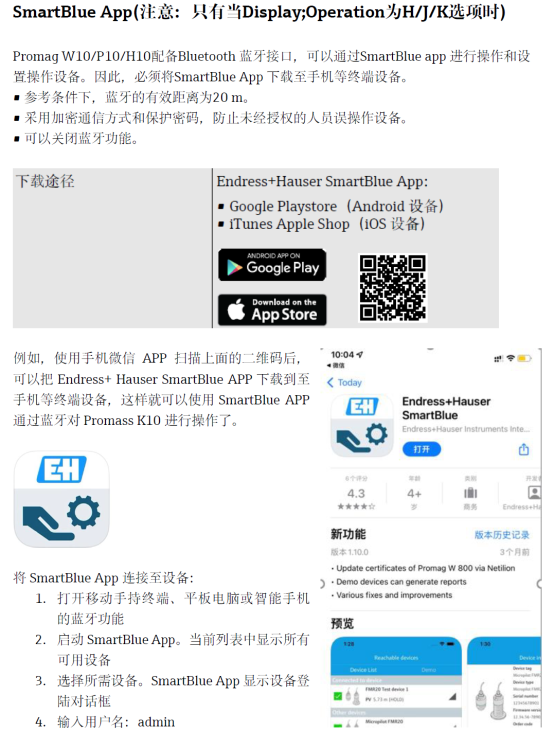
Preparations Before Connection
Hardware and Software Requirements
- A smartphone or tablet supporting Bluetooth 4.0 or above
- The latest version of SmartBlue App installed (iOS or Android)
- The Promag 10 5XBB instrument is properly powered on
- The instrument Bluetooth function is enabled (enabled by default)
Environmental Precautions
- Ensure the distance between the phone and the instrument is within 10 meters, with no strong interference sources
- Avoid operating inside metal shielded cabinets to prevent Bluetooth signal attenuation
SmartBlue Connection Operation Steps
Step 1: Launch the App and Search for Devices
- Turn on the phone's Bluetooth function
- Launch the SmartBlue App and enter the device search interface
- Wait for the Promag 10 5XBB device name to appear in the list
Step 2: Establish Connection
- Tap the target device name
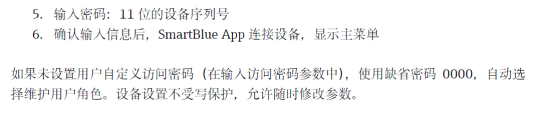
- Enter the default access password (usually 0000 or the last four digits of the instrument serial number)
- After successful connection, the App will display the instrument's real-time measured values and parameter menu
Key Parameters and Connection Status Description
| Item | Description | Typical Value |
|---|---|---|
| Bluetooth protocol | Bluetooth Low Energy BLE | Bluetooth 4.0+ |
| Effective distance | Unobstructed environment | ≤10 m |
| Default password | Used for first connection | 0000 |
| Supported systems | Mobile operating systems | iOS / Android |
Common Issues and Troubleshooting Methods
Unable to Find the Device
- Confirm the instrument is powered on and the Bluetooth indicator is normal
- Check whether the phone's Bluetooth is turned on and the App has been granted location permission
- Restart the App or power cycle the instrument
Frequent Disconnections After Connection
- Shorten the distance between the phone and the instrument
- Stay away from strong electromagnetic interference sources such as frequency converters and motors
- Turn off other Bluetooth peripherals on the phone
Summary
Connecting the Promag 10 5XBB via the SmartBlue App enables cover-free commissioning and parameter configuration, improving on-site work safety and efficiency.
It is recommended that engineering personnel promptly change the default password after the first connection and record the instrument's Bluetooth name for subsequent maintenance and procurement spare parts verification.