
FMU30 FMU4X Display Mode Overview
FMU30 and FMU4X series instruments display measurement values in percentage form by default, making it easy for users to intuitively judge the relative proportion of liquid level or material level.
However, in some engineering scenarios, it is necessary to directly read the actual measurement value in distance units (such as meters, centimeters). In this case, the display mode needs to be changed manually.
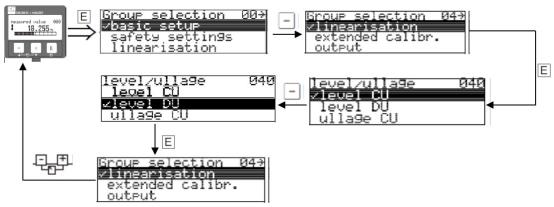
Steps to Change the Display Unit
If you need to switch the instrument from percentage display to distance unit display, please follow these steps:
- Enter the instrument parameter setting menu and find the display mode option.
- Change the display mode from percentage to distance unit.
- Select the target unit according to actual needs (such as m, cm, mm, etc.).
- Confirm and save the settings. After exiting the menu, the instrument will display measurement values in the new unit.
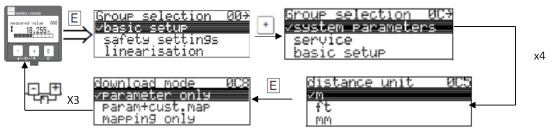
Key Precautions
- Before changing the unit, please ensure that you understand the current range to avoid display values exceeding expectations.
- Some models require expert mode to modify the display unit. Please refer to the corresponding manual.
- After the change, it is recommended to perform on-site verification to confirm that the displayed value matches the actual distance.
Correctly setting the display mode can significantly improve on-site commissioning efficiency and data readability, especially for working conditions that require direct distance reading.