
User Interface Modification Guide for the 83 Series Mass Flow Meter
The user interface of the 83 Series Mass Flow Meter is designed to be intuitive. Core parameter settings such as language, units, current output, and pulse output can be completed through photoelectric touch keys. Mastering the correct key operation logic can significantly improve on-site commissioning and maintenance efficiency.
Basics of Photoelectric Touch Key Operation
The instrument is equipped with three photoelectric touch keys: the “+” key, the “-” key, and the “E” key. These keys are triggered by touch sensing and do not require mechanical pressing, making them suitable for use in industrial environments.
- “+” and “-” keys: Used for value adjustment, menu navigation, and exit operations.
- “E” key: Used to enter menus, confirm inputs, and cancel data entry.
Common Key Combination Functions
- Press the “+” and “-” keys simultaneously: Exit the function matrix step by step and return to the main display page.
- Press the “+” and “-” keys simultaneously and hold for more than 3 seconds: Return directly to the main display page and quickly exit deep menus.
- Press the “+” and “-” keys simultaneously: Cancel the current data input without saving changes.
Modifying User Interface Parameters
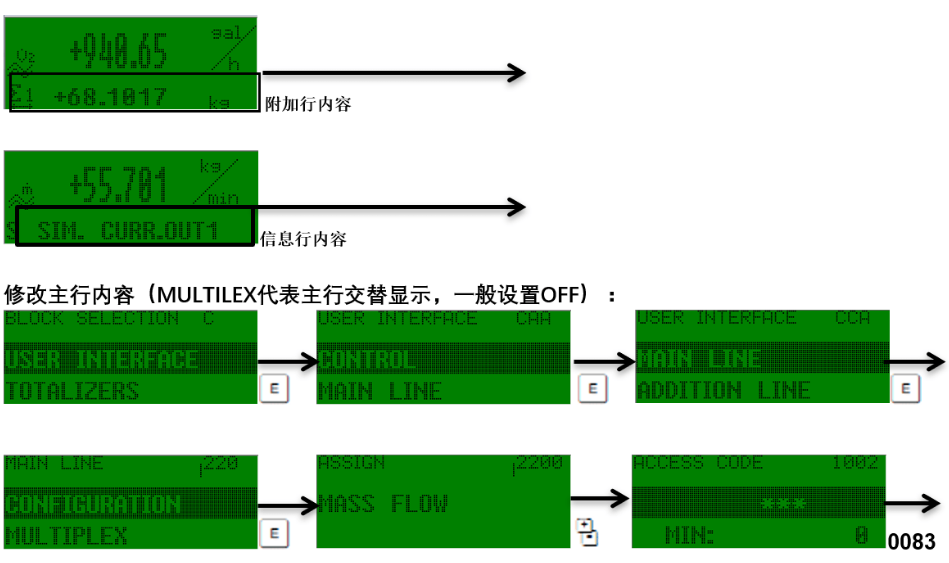
To modify the language, units, current output, or pulse output, you need to enter the user interface menu. The specific steps are as follows:
- Press the “E” key to enter the main menu.
- Use the “+” or “-” key to find the USER INTERFACE option.
- Press the “E” key to enter this menu, and then you can separately set the language, units, current output, and pulse output.
During the setup process, if you need to cancel the current input, press the “+” and “-” keys simultaneously; if you need to quickly return to the main display page, press the “+” and “-” keys simultaneously and hold for more than 3 seconds.
Password Entry and Confirmation
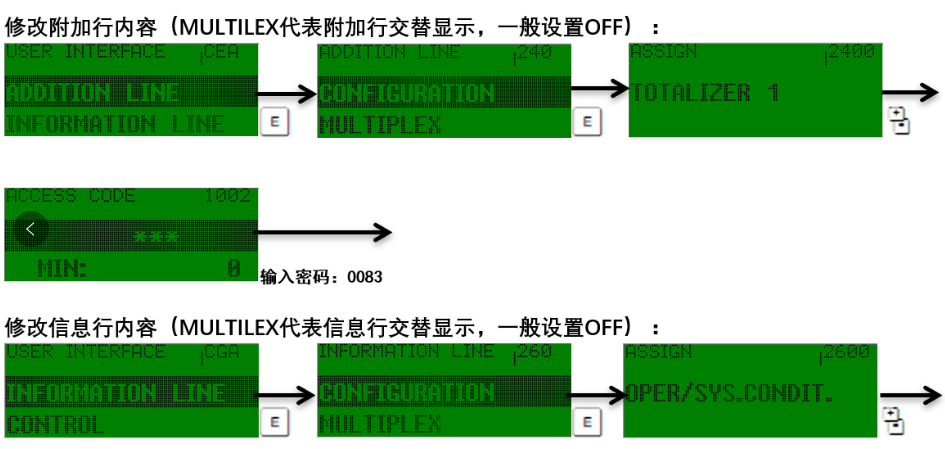
Modifying user interface parameters may require entering a password. The default password is 0083, or you can directly enter 83. When entering, after the third “*” from left to right turns into a carriage return key, press the “E” key to confirm.
If the password is entered incorrectly, you can press the “+” and “-” keys simultaneously to cancel the input and try again.
Parameter Setting Quick Reference Table
| Function | Key Operation | Description |
|---|---|---|
| Enter menu | Press the “E” key | Enter the function matrix from the main display page |
| Select menu item | Press the “+” or “-” key | Scroll to find USER INTERFACE |
| Confirm input | Press the “E” key | Save the current setting |
| Cancel input | Press the “+” and “-” keys simultaneously | Do not save changes |
| Exit step by step | Press the “+” and “-” keys simultaneously | Return to the main display page step by step |
| Quick exit | Press the “+” and “-” keys simultaneously and hold for more than 3 seconds | Return directly to the main display page |
| Password entry | Enter 0083 or 83, then press the “E” key | Confirm after the third “*” turns into a carriage return key |
Summary
The user interface settings of the 83 Series Mass Flow Meter mainly rely on combined operations of photoelectric touch keys. Use the “E” key to enter menus, use the “+” and “-” keys to navigate and adjust, and use key combinations to quickly exit or cancel. Password entry is simple, with the default being 0083 or 83. By following the above steps, both engineering technicians and procurement personnel can efficiently complete instrument configuration.