
Promass 100 Web Browser Commissioning Overview
The Promass 100 supports commissioning via a web browser, requiring no dedicated software and offering convenient operation. Web browser commissioning allows access to the operation menu, viewing parameters, and completing configuration. It is suitable for engineering technicians and procurement personnel to get started quickly.
Commissioning Steps
1. Access the Operation Menu
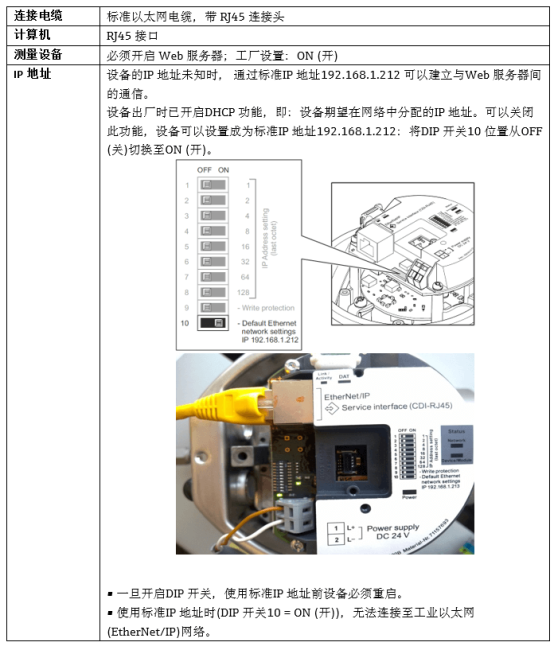
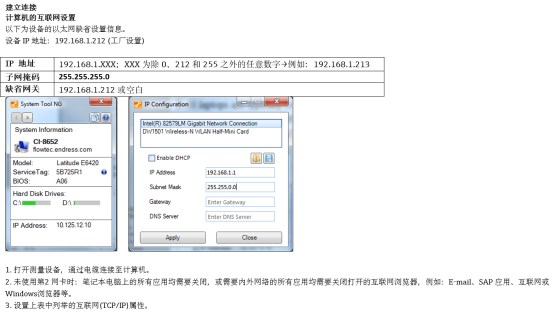
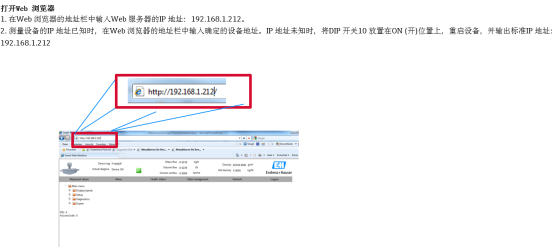
Open a web browser and enter the IP address of the Promass 100 to access the operation menu interface.
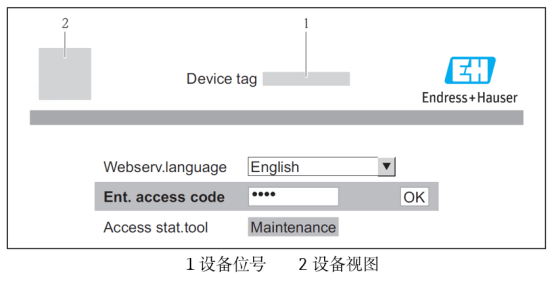
2. Display the Login Interface
After entering the operation menu, the system displays the login interface, where you need to enter a username and password for authentication.
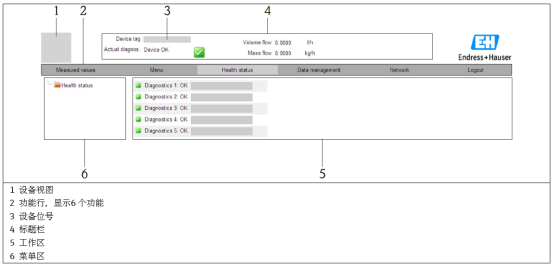
[Click image to enlarge]
Precautions
- Ensure browser version compatibility; modern browsers such as Chrome and Edge are recommended.
- Use the correct username and password when logging in to avoid lockout due to multiple errors.
- Do not close the browser or disconnect the network during commissioning to prevent configuration loss.
Frequently Asked Questions
| Problem | Possible Cause | Solution |
|---|---|---|
| Unable to access the operation menu | Incorrect IP address or network unreachable | Check the IP address and network connection |
| Login failed | Incorrect username or password | Re-enter the correct credentials |
| Abnormal interface display | Browser incompatibility | Switch to a recommended browser |
Tip: Regularly updating the browser and instrument firmware ensures stable commissioning functionality.