
I. STEP7-Micro/WIN SMART Software Overview
STEP7-Micro/WIN SMART is the dedicated programming and configuration software for S7-200 SMART PLC. The installation file is less than 200MB, and it can run on operating systems such as Windows XP SP3 and Windows 7. The software supports three programming languages: Ladder Diagram (LAD), Statement List (STL), and Function Block Diagram (FBD), and some language programs can be freely converted between each other.
On the basis of inheriting the advantages of STEP7-Micro/WIN (S7-200 PLC programming software), it adds more user-friendly designs, making programming easier to get started with and project development more efficient. The following demonstrates the complete installation process in the order of “download—extract—install—verify.”
1.1 Basic Software Parameters
| Item | Parameter Description |
|---|---|
| Software Name | STEP7-Micro/WIN SMART |
| Applicable Hardware | S7-200 SMART series PLC |
| Supported Operating Systems | Windows XP SP3, Windows 7 |
| Programming Languages | LAD, STL, FBD |
| Installation Package Size | Less than 200MB |
| Available Versions | V2.8, V3.1 |
II. Preparations Before Installation
2.1 System and Permission Requirements
- Operating system: Windows XP SP3 or Windows 7; it is recommended to match the computer's bit version.
- Account permissions: Log in with an account that has administrator privileges to avoid installation failure midway.
- Disk space: Reserve more than 1GB of space for extracting the installation package and installing the program.
2.2 Pre-installation Checklist
- In advance, disable the real-time protection of antivirus software to prevent the installation package from being blocked or accidentally deleted.
- Confirm that the compressed package has been fully downloaded; if necessary, download it again.
- Prepare extraction tools such as WinRAR and 7-Zip.
III. Download the Installation Package from the Siemens China Official Website
3.1 Official Website Download Path
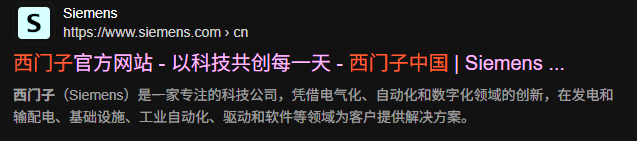
- Open the Edge browser, search for “Siemens China official website,” and enter the official website portal with the tag “Technology to transform the everyday.”
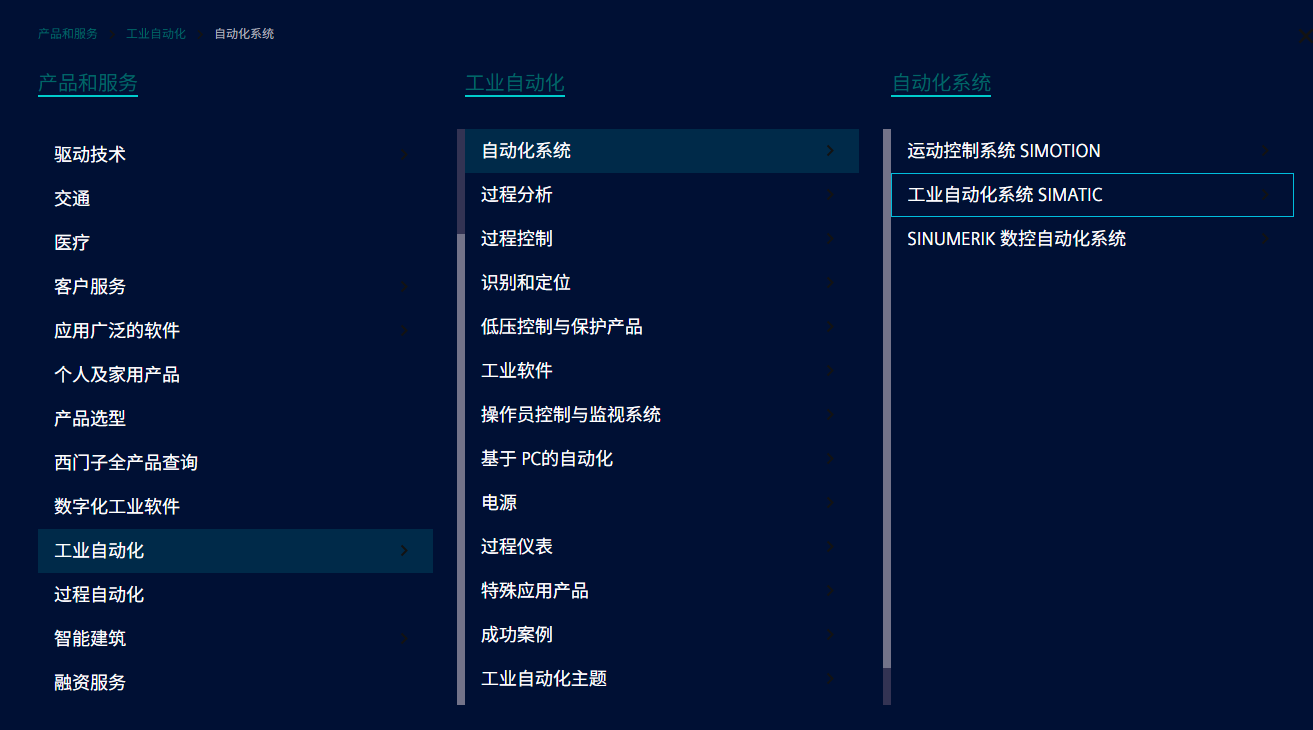
- Select Products and Services → Industrial Automation → Automation Systems → Industrial Automation Systems SIMATIC in sequence.
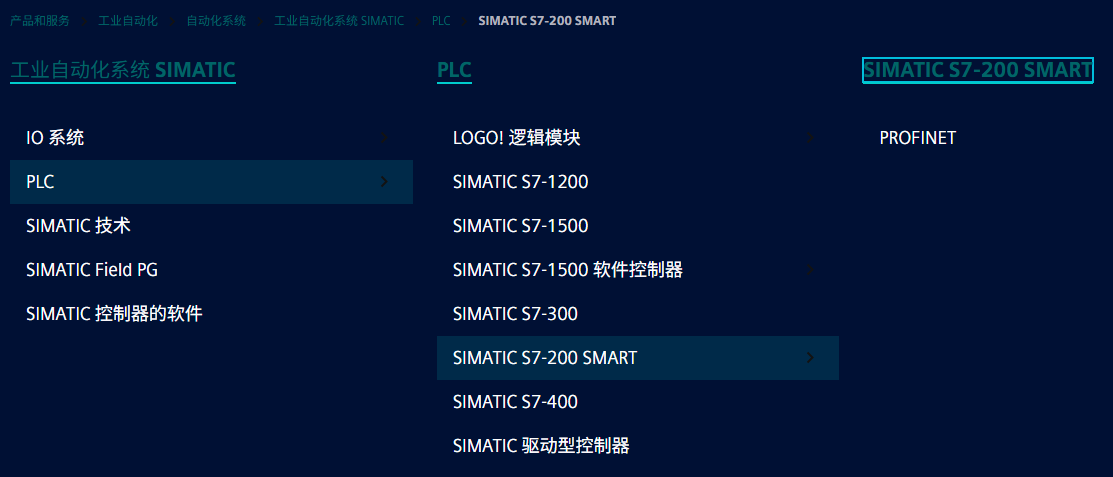
- Select PLC, find SIMATIC S7-200 SMART, and click SIMATIC S7-200 SMART at the top of the page.
- Select the second item on the page, then scroll the page to the very bottom.

- In the download area, select the required version; V2.8 and V3.1 are available.

3.2 Version Selection Recommendations
| Version | Applicable Scenario | Selection Recommendation |
|---|---|---|
| V2.8 | Maintaining existing V2.8 projects, older on-site CPUs | Keep consistent with the original project version to reduce compatibility issues |
| V3.1 | New project development, S7-200 SMART CPUs with newer firmware | For new projects, prefer a newer version |
During download, keep the network stable and temporarily disable antivirus software; otherwise, the download may fail or files may be quarantined. After the download is complete, extract the compressed package to enter the installation stage.
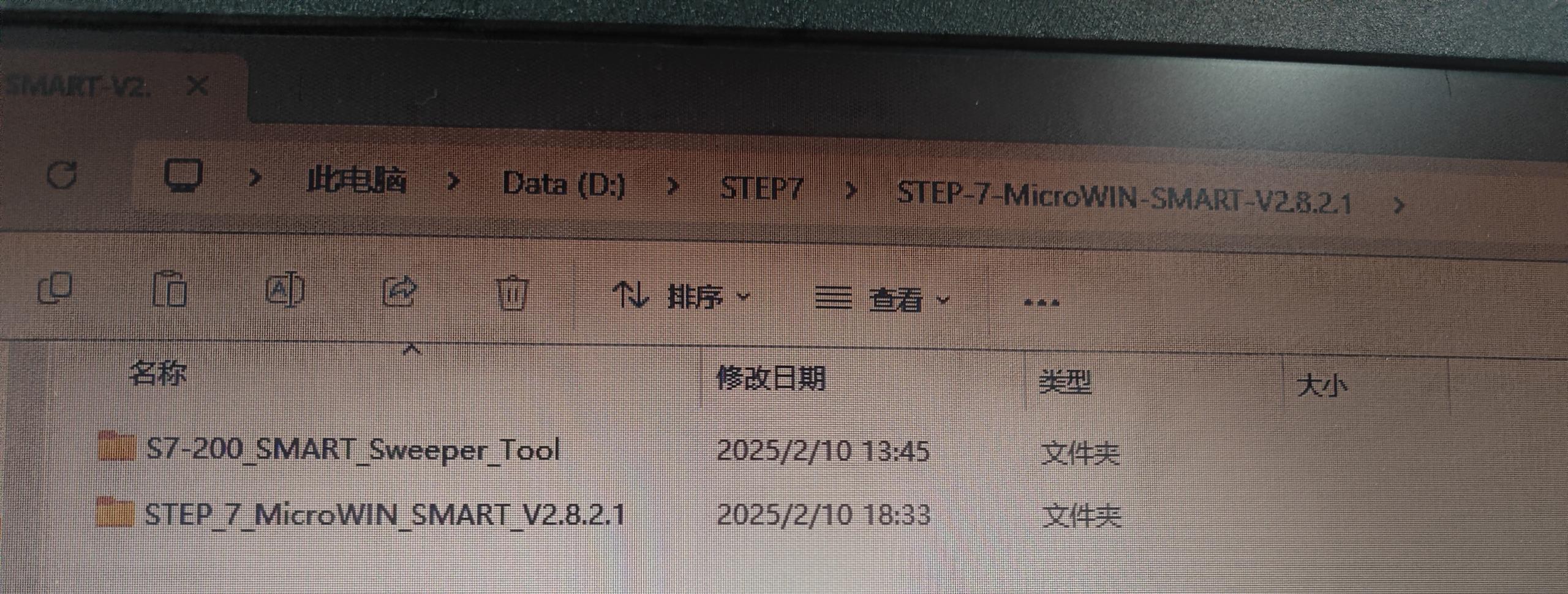
IV. Extract the Installation Package
- Right-click the downloaded compressed package and select Extract to Current Folder.
- After extraction is complete, an installation folder is obtained; enter the folder with the version number (e.g., V2.8, V3.1).
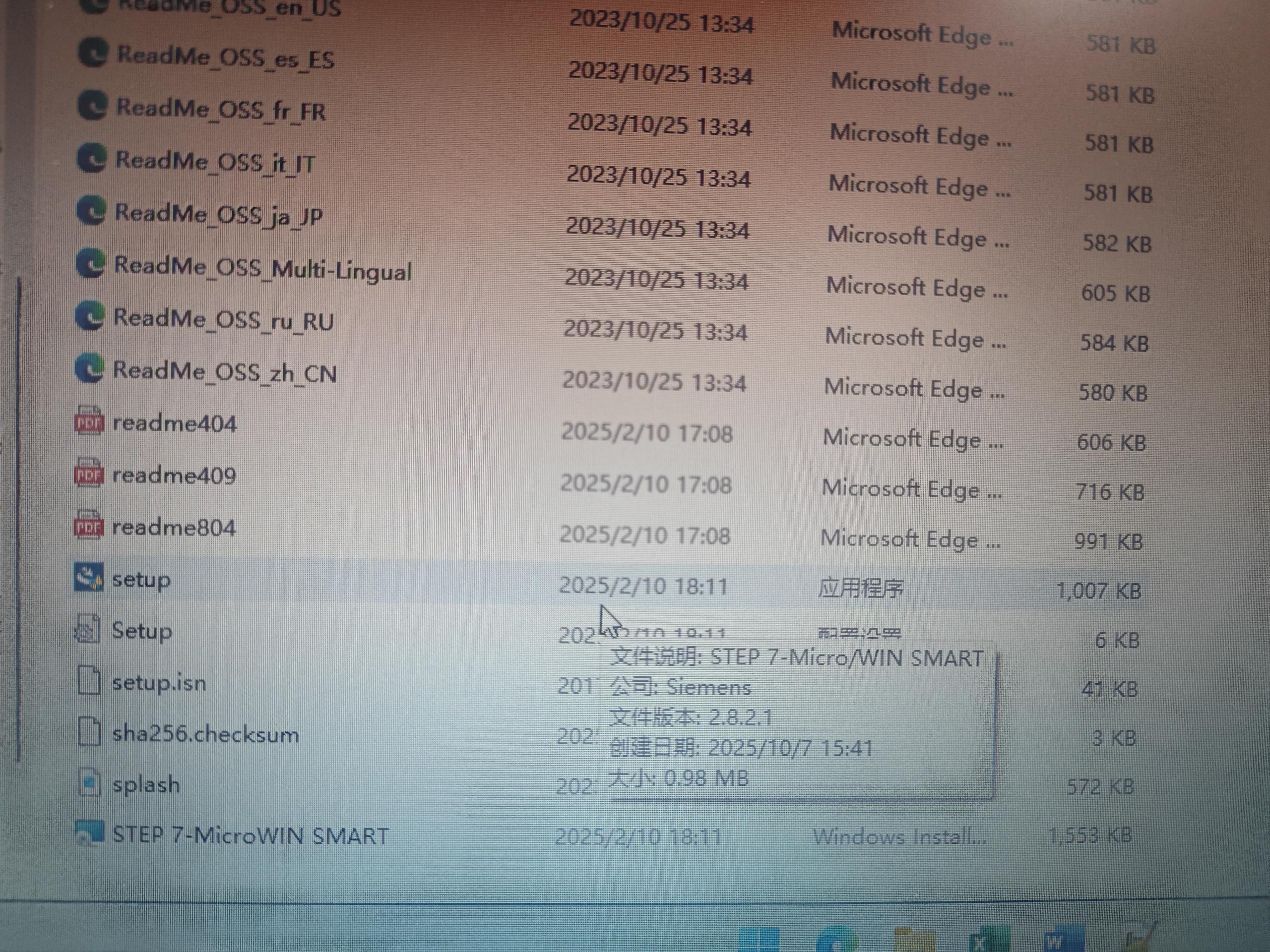
- Find the setup.exe installation program in the folder and prepare to run it.
V. Run the Installation Program and Complete Installation
- Right-click setup.exe and select “Run as administrator”; the software will begin installation.
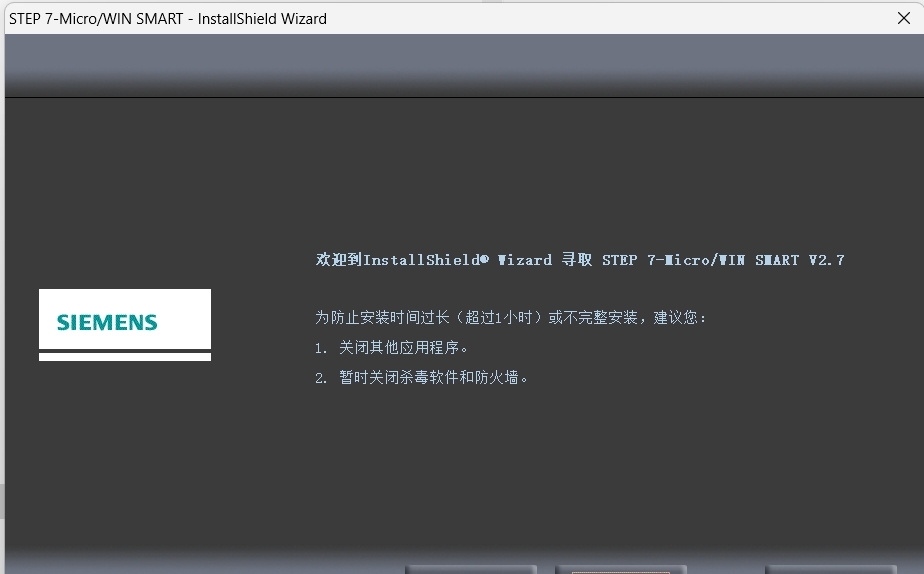
- After the installation wizard starts, click “Next.”
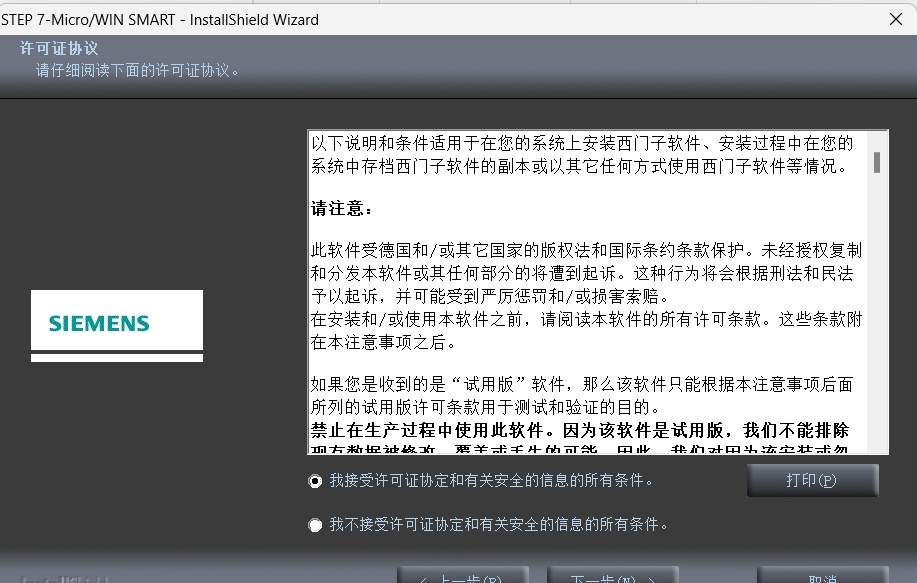
- Read the license agreement, select “Accept,” then click “Next.”
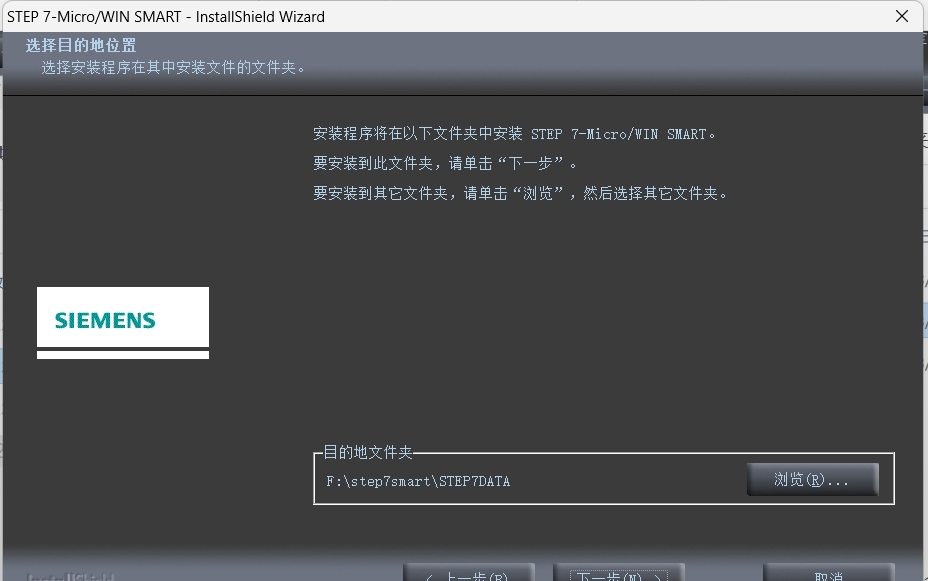
- Choose an appropriate installation location; it is recommended to use the default path or a pure English path, then click “Next.”
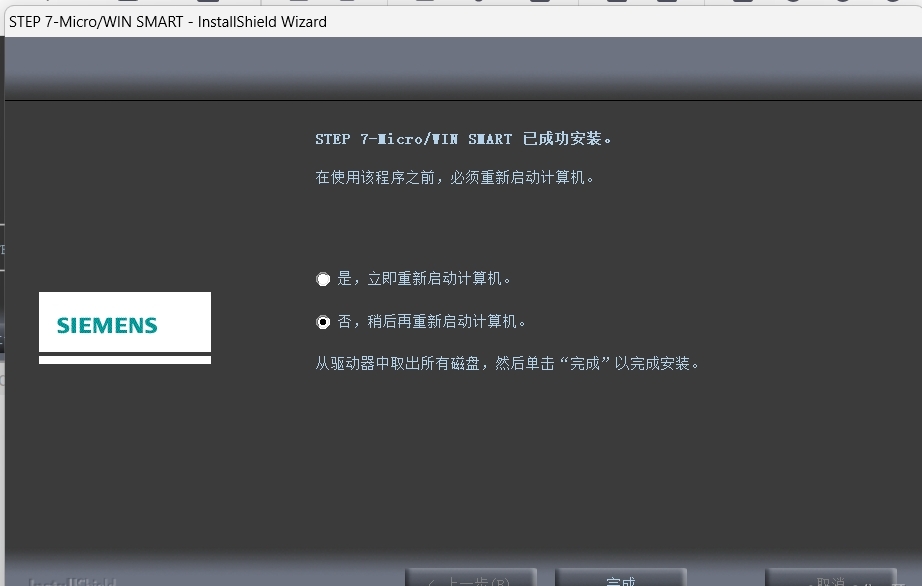
- After installation ends, if prompted to restart or launch settings, select “No.” The software installation is complete and it is ready to use.
VI. Installation Notes and Common Issues
- Antivirus software blocking: Before installation and download, it is recommended to disable real-time protection to prevent the installation package from being deleted.
- Insufficient permissions: setup.exe must be run as administrator; otherwise, an error may occur midway.
- Path contains Chinese characters: Try to use an English path for the installation directory to reduce unknown compatibility issues.
- Corrupted compressed package: If extraction reports an error, re-download the complete compressed package, or search for an installation package from another reliable source, extract it, and install.
- Version mismatch: Choose V2.8 or V3.1 according to the PLC firmware and project requirements.
VII. Verification After Installation
- Double-click the desktop shortcut to confirm that the software opens normally.
- Check the version number under “Help—About” and verify whether it matches the downloaded version.
- Create a new project and select the corresponding CPU model to test whether communication with the PLC is normal.